
Free text to speech

Phone listening guide

How to use text to speech on phone when reading aloud does not start

If you are learning how to use text to speech on phone, begin with a short passage you can select easily. First decide whether you want your phone to read text on its screen or want to create spoken audio from a script; those are different tasks with different controls.

Check options on the destination site
Text To Speech site imagery

Symptom

The right fix depends on what you expected to hear. Match your situation to the closest starting point before changing several settings at once.

Android reader

You can see an article, but selecting its text does not offer a spoken-reading option. Check whether Select to Speak is available in Accessibility, then test with text in a different app; some screens do not allow selection.

For platform-specific controls, text to speech for android explains where to look without assuming every Android menu has the same name.

text to speech for android

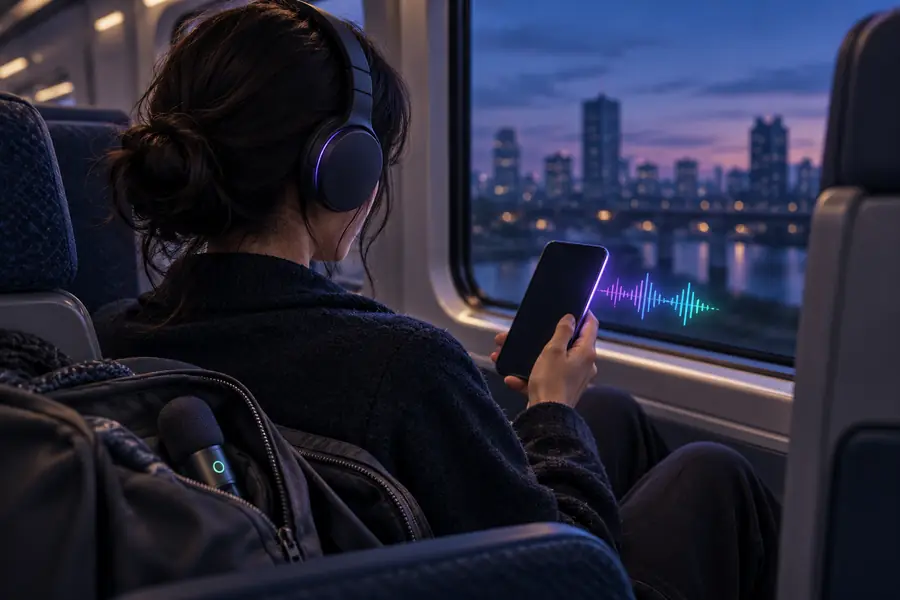
iPhone reader

You select a paragraph but see no Speak command. Look under Settings, Accessibility, Spoken Content for Speak Selection, then select a plain paragraph and reopen the selection menu.

The guide how to use text to speech iphone covers the iPhone reading controls in more detail.

how to use text to speech iphone

First-time listener

You are unsure whether to use a device accessibility feature or a web-based voice tool. Choose on-screen reading for material already open on the phone; consider script-based generation when you need a separate narration.

For the wider distinction and a basic workflow, see how to use text to speech.

how to use text to speech

Script writer

You have written a voiceover and want to hear how it sounds, rather than have the phone read an existing page. Prepare a short script with punctuation before exploring a voice-generation service.

The walkthrough how to use text to speech ai voice focuses on preparing and checking generated narration.

how to use text to speech ai voice

Elimination order table

Work through these checks in order. Stop when a short, selectable sentence plays successfully; changing everything at once makes the cause harder to identify.

  1. 1

    Check where the sound goes

    Raise media volume while audio is playing, disconnect Bluetooth headphones or speakers if necessary, and confirm that another app produces sound. A silent phone or unexpected output device can make a working reading control seem broken.

  2. 2

    Enable the reading control

    On iPhone, check Spoken Content in Accessibility and turn on Speak Selection or Speak Screen as needed. On Android, look in Accessibility for Select to Speak or a comparable reading feature; names and availability vary by device and version.

  3. 3

    Test ordinary selectable text

    Open a simple note or article, select one sentence, and choose the available speak or read-aloud action. If that works but another app does not, the difficulty may be that app's selection behavior rather than your phone's speech settings.

Each fix's steps

After the first sound check, follow the guide for your actual device or task. These paths separate built-in phone reading from creating narration with a voice tool.

Choose the fix that matches the task

Built-in reading and script-to-audio generation can both involve text to speech, but one does not replace the other. Use this comparison before spending time on the wrong setting.

Phone's built-in reader
Script-based voice tool

Starting material

Phone's built-in reader

Text visible or selectable on the phone

Script-based voice tool

A script you enter or paste into the tool

Main purpose

Phone's built-in reader

Listen to on-screen material while using the device

Script-based voice tool

Create a spoken rendition of supplied text

First check

Phone's built-in reader

Accessibility setting and selection menu

Script-based voice tool

The destination service's input and available options

If nothing plays

Phone's built-in reader

Check media volume, audio routing, and a second app

Script-based voice tool

Check the service response and your phone's audio output

App dependence

Phone's built-in reader

Some apps restrict selection or screen reading

Script-based voice tool

You can often paste text separately if you can copy it

Output to keep

Phone's built-in reader

Do not assume the spoken reading creates a file

Script-based voice tool

Check the service's current export options before relying on a file

Best first test

Phone's built-in reader

One selectable sentence in a notes app

Script-based voice tool

One short, punctuated sentence without private information

What a successful test changes

A useful before-and-after check is not whether a particular button appears everywhere. It is whether you can repeat the same short listening test and identify where a failure begins.

Illustration accompanying the phone reading guide Unclear reading path
Illustration accompanying the AI voice guide Chosen listening path
Illustrative guide images, not screenshots of your device or a promised audio result. For built-in reading, repeat the same sentence in two apps; for a script tool, compare its spoken rendition with the text you submitted.

Limits to plan around

A phone can speak text without guaranteeing access to every screen or producing a reusable audio file. These boundaries help distinguish a settings problem from an unsupported task.

Not every screen exposes text

Text embedded in an image, a protected document, or an app interface may not be selectable. A reading control cannot reliably speak text it cannot access.

Workaround

Try an accessible text version, or use your device's supported text-recognition feature when appropriate.

Reading aloud is not automatically an export

The phone's accessibility reader is designed primarily for listening. Turning it on does not mean it will save an audio file for a video or presentation.

Workaround

If you need a file, inspect the chosen voice service's current output and usage options before committing to a workflow.

Voice menus vary by device

Android manufacturers and operating-system releases can rename or reposition speech settings. The exact gestures and available voices may differ from a guide's examples.

Workaround

Search your phone's Settings for Accessibility, Select to Speak, or speech, then test a short passage.

Private text needs care

A script pasted into an external service leaves the phone's local reading workflow. Do not assume its handling matches a built-in accessibility feature.

Workaround

Use a harmless sample first and review the destination service's terms and privacy information before entering sensitive text.

How to avoid recurrence

Keep a repeatable listening check

Save a short, non-sensitive test sentence in a note. If text to speech stops working on your phone, play another source of audio first, then try that sentence in a selectable-text app before revisiting Accessibility. This order helps separate an audio-routing issue, a disabled reading control, and an app that blocks selection. If your goal is a separate spoken rendition of a script, try the voice destination and review its available options there.

Try spoken audio
  • Test with ordinary text before a complex document
  • Check connected audio devices after changing locations
  • Keep private information out of trial scripts

Tutorial FAQ

Enable the relevant spoken-content or reading feature in your phone's Accessibility settings, then test a sentence in an app where you can select text. On iPhone, look for Speak Selection or Speak Screen; on Android, look for Select to Speak or a similarly named option. The exact menu and gesture depend on your device.

First confirm that the reading feature is enabled, then select a sentence in a simple notes app. If Speak appears there but not in the original app, the original screen may limit text selection or change the selection menu. On some phones, additional actions are hidden behind a menu or arrow.

Play sound from another app to check media volume and whether audio is going to Bluetooth headphones or a speaker. Then retry a short sentence while watching for a playback indicator. If other audio works, return to the reading setting and test in a second app.

Often you can select article text and use your phone's reading control, provided the page exposes selectable text. Some browser or page layouts behave differently, so test a plain paragraph first. If selection is blocked, look for an accessible article view or another readable version.

Usually, a built-in accessibility reading action is for listening, not automatically for saving narration. If you need audio for another project, treat that as a separate script-to-voice task. Check the destination tool's current output options and terms before relying on a particular file format.

Create audio
Create audio